
Nobody noticed the job had stopped: how to catch failed job queue entries in Business Central
Nobody notices when a job queue entry stops. The orders still get entered, the screens still load, and the close still happens. Then, weeks later, someone asks why the web store orders stopped arriving on the 14th, or why inventory costs haven't reached the G/L since the last update.
Most of what Business Central does in the background, from posting inventory cost to syncing with other systems to sending scheduled reports, runs through the job queue. When one of those jobs fails, Business Central doesn't stop you working. It marks the entry and waits for someone to look. This article explains how that works, where failures show up, and how to make sure someone finds out the same day.
For the CFO, in three lines
- Why it matters: The job queue runs integrations, cost posting and notifications in the background.
- What goes wrong: A failed job stops quietly, and nobody notices until month-end numbers are wrong.
- Ask your team: Who is notified when a job queue entry fails?
What the job queue actually runs
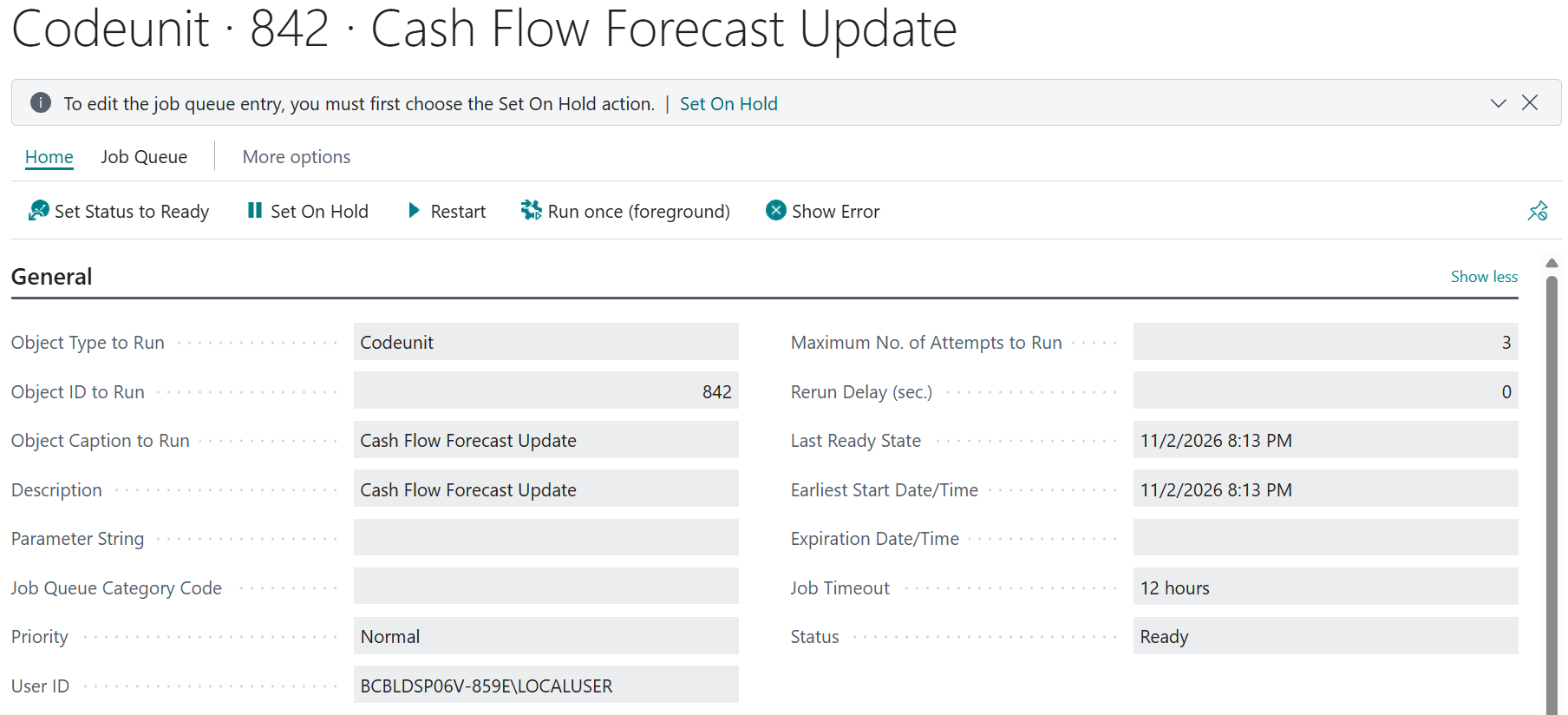
A job queue entry tells Business Central to run a report or codeunit at a set time, once or on a schedule. You see them on the Job Queue Entries page, and each opens to a Job Queue Entry Card. Typical entries in a live company:
- Post Inventory Cost to G/L and cost adjustment, if you don't post them as you go (see our post on why inventory doesn't match the G/L).
- Integration jobs: imports and exports to e-commerce, payroll, expense and banking systems, often from an extension your partner or an ISV installed.
- Synchronization with Dataverse or other Dynamics apps.
- Scheduled reports that someone emails to the leadership team every Monday.
The person who owns these jobs is often nobody in particular. A partner set them up during implementation, and they run under someone's user ID. That's the root of the problem.
How a job fails, and why nobody hears about it
Every job queue entry has a Status. These are the ones that matter:
| Status | What it means |
|---|---|
| On Hold | The default for a new entry. It won't run until it's set to Ready. |
| Ready | Waiting for its next start time. |
| In Process | Running now. |
| Error | It failed and has stopped. Choose Show Error to see why. |
| Finished | A one-off job that completed. |
There are two more you may see: Waiting, for entries that share a category code and run one after another, and On Hold Due to Inactivity, used mainly for synchronization jobs.
Two fields on the card control what happens when a job fails. Maximum No. of Attempts to Run is how many times the entry can fail before it stops trying. Rerun Delay (sec.) is the wait between attempts. Microsoft suggests using them for jobs that call an outside service that may be briefly unavailable.
Once the attempts run out, the entry is set to Error and, in Microsoft's words, you must manually restart it. Business Central doesn't keep retrying a failed recurring job, and it doesn't stop anyone posting. A nightly integration that hits an expired password on Tuesday is still in Error on Friday unless someone looks.
What it looks like in the ledgers
The effect depends on the job, and that's why it's easy to miss:
- If Post Inventory Cost to G/L stops, value entries keep piling up but no G/L entries are created. The inventory valuation is right, the balance sheet isn't, and the gap grows every day.
- If an order import stops, there's simply nothing new. Nothing errors in front of a user, because no user is involved.
- If an export to payroll or a bank stops, the other system is out of date, and the problem is found by someone outside finance.
Where failures show up
Business Central gives you four places to look. Use at least two of them.
1. The Job Queue Entries page. Filter Status to Error. For each entry, choose Show Error, or open Log Entries to see the history. The Job Queue Log Entries page keeps a record of each run and its error, and from version 22.1 has a Copy details action for sending the error to whoever supports that extension.
2. The Job Queue Tasks cue on the home page. Its Tasks Failed tile counts entries that have used up their attempts. The catch: by default it shows the jobs you started. If the jobs run under a partner's user or a departed employee's, the person looking at the home page may see zero.
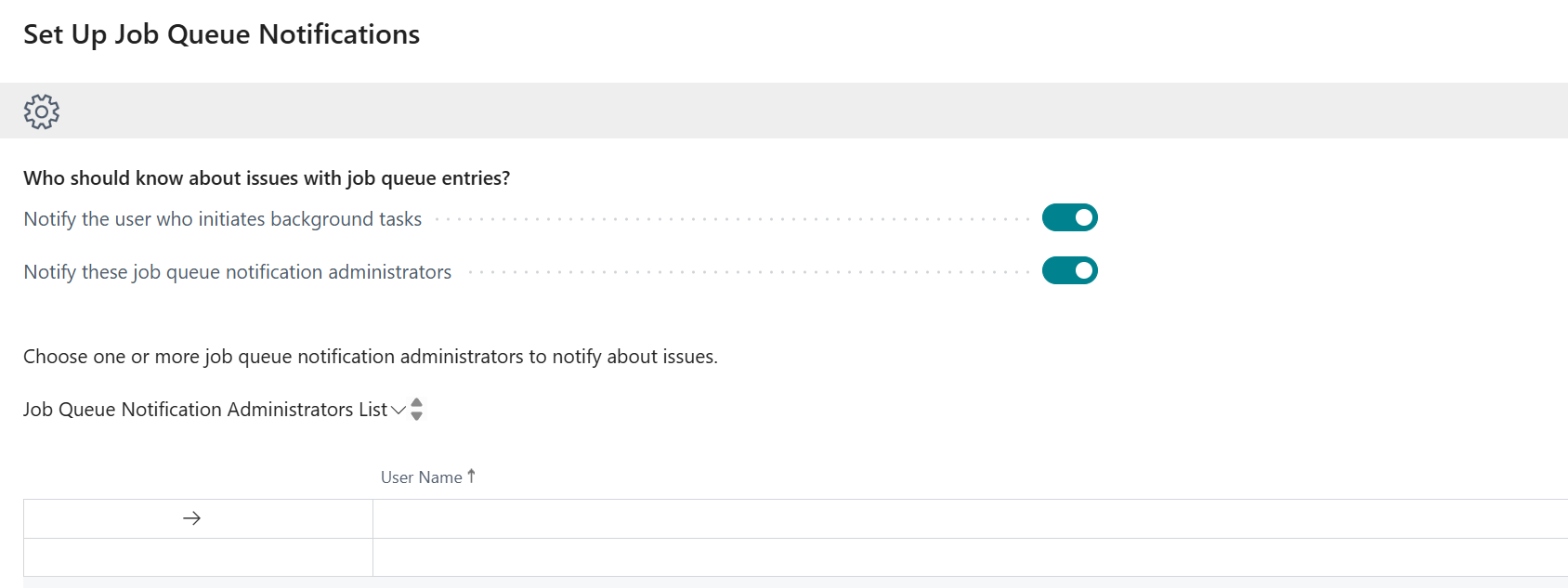
3. In-product notifications (2024 release wave 2). Run the Set up Job Queue Notifications assisted setup guide from the Assisted Setup page. It lets you choose who's told (the user who started the job, job queue notification administrators, or both), whether they're told immediately or after a threshold of failures, and turns on in-product notifications. Administrators you name can see failures for all users, which fixes the problem in point 2. Users can turn off the Job Queue Failed Notification on their My Notifications page, so the administrator setting matters.
4. Email or Teams through Power Automate. The same guide can turn on business events and leads to a Power Automate template that sends a message when a job queue entry fails. This is the one we recommend for anything that matters, because an email to a shared mailbox or a Teams channel doesn't depend on someone opening Business Central. Microsoft released the external notifications in 2024 release wave 2; check the guide in your version for the exact template name, which Microsoft's own pages describe slightly differently.
For companies with an IT team or a partner who watches telemetry, Business Central also emits telemetry signals to Azure Application Insights. Event AL0000JRG fires when a job queue entry fails for the last time and is set to stopped, and Microsoft's documentation includes sample alerts for it. That's how you catch failures across several environments at once.
How to fix a failed entry
- Read the error first. Choose Show Error or open the log. Most errors are plain: an expired credential, a missing setup value, a record locked by another user, a period closed to posting.
- Fix the cause, not the entry. Restarting a job that failed because of a closed posting period just fails again.
- Restart it. Use Set Status to Ready, or set it On Hold and then Ready. Check Earliest Start Date/Time so it runs when you expect.
- Deal with the backlog. A restarted import only picks up what it was designed to pick up. Check whether the missed days need a catch-up run or a manual load.
- Escalate the right way. If the error points to an extension, it goes to your partner or the app's publisher. If it points to a Microsoft app, it's a support request. Microsoft asks for the job queue entry ID, the time of the error and your time zone, so note them before you restart.
The mistakes we see most
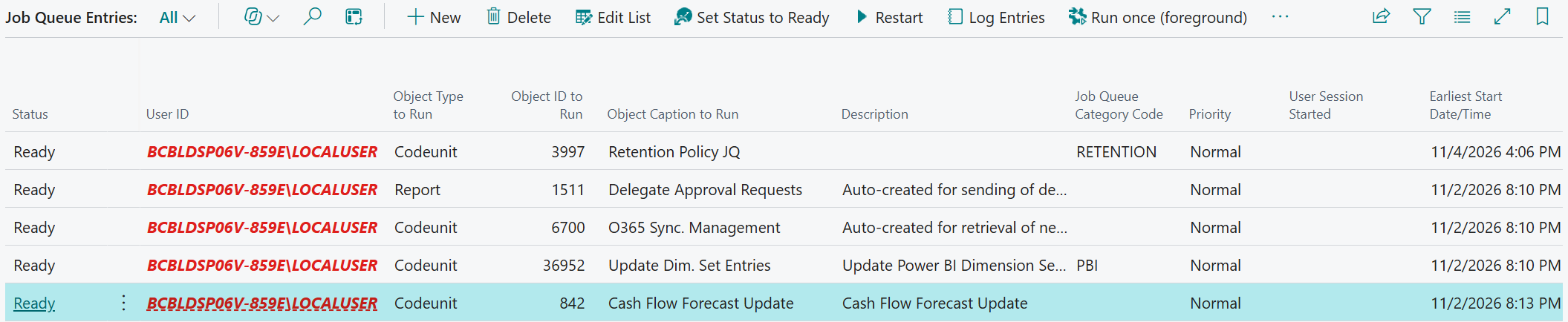
Jobs running under a person, not a role. Each entry shows a User ID. When that's a consultant from the implementation or someone who has left, nobody gets the notifications and nobody feels responsible. It's easy to spot: in the demo company below, five of the six entries belong to a user that doesn't exist in the environment, and Business Central shows that User ID in red. Review the list and move important jobs to a user your team controls, with the permissions the job needs. Microsoft notes you must have permission to run the report or codeunit, and that a delegated admin can schedule jobs but only administrators and licensed users can run them.
Leaving a sandbox copy in the dark, or the reverse. Microsoft notes that scheduled tasks stop in an environment that's a copy of another. That's a good safety net (you don't want a test copy sending orders to your live web store), but it means a copy used for testing won't behave like production until you set its tasks ready on the Scheduled Tasks page. Be deliberate about which jobs you turn back on in a copy.
Retries set too high. A job with many attempts and a long delay can take most of a day to reach Error. That's useful for a flaky outside service, and harmful for a nightly posting job that should be fixed before the morning.
Nobody checks after an update. Monthly Business Central updates and extension upgrades are when setups change and credentials get re-entered. Check the Error filter the morning after.
When it points to something bigger
A job that fails once because a password expired is housekeeping. Fix it, add a notification, move on.
It's worth a closer look when the same integration fails every few weeks, when nobody on your team can say what each job queue entry does, or when the fixes always come from the partner who built it. Those are signs that your integrations were built without monitoring in mind, and that the knowledge of how your system runs sits outside your company. With year-end close and the audit coming, that's the time to find out, not the week after the year-end inventory doesn't tie out.
A background job that fails quietly isn't a technical problem until it's a month-end problem.
Job queue checklist
- Filter Job Queue Entries on Status = Error. Anything there today?
- For each recurring entry: what it does, who owns it, and whose User ID it runs under.
- Run Set up Job Queue Notifications, with at least one job queue administrator named.
- Add an email or Teams alert through Power Automate for anything finance or customers depend on.
- Review Maximum No. of Attempts to Run and Rerun Delay (sec.) on posting and integration jobs.
- Check the Error filter after every update and extension upgrade.