
Why your Business Central inventory value doesn't match the G/L, and how to fix it
It's month-end. The inventory valuation says one number, the inventory account on the balance sheet says another, and the difference isn't small enough to wave through. Someone suggests a journal entry to "true it up." Don't, at least not yet.
In Business Central, a gap between inventory and the general ledger almost always has a specific, traceable cause. Most of the time it's one of six things, and most of them are fixable without a consultant. Here's how the cost actually gets from an item transaction to the G/L, where it gets stuck, and how to find it.
How cost travels from an item entry to the G/L
Every inventory transaction in Business Central (a purchase receipt, a sale, an adjustment, a consumption, an output) creates value entries. Value entries carry the cost. The general ledger only sees that cost when it's posted there, and two separate processes control that:
- Cost adjustment recalculates the cost of outbound entries when the cost of the inbound entries they came from changes. A late purchase invoice at a different price, a landed cost charge, or an average cost recalculation all change what the goods you already sold actually cost. The batch job is Adjust Cost - Item Entries. The Automatic Cost Adjustment field on the Inventory Setup page can run adjustment as you post instead. Its options are Never, Day, Week, Month, Quarter, Year and Always, and the default is Always.
- Posting to the G/L creates general ledger entries from value entries that haven't been posted yet. If Automatic Cost Posting is on in Inventory Setup (the default), this happens as you post each transaction. If it's off, nothing reaches the G/L until someone runs Post Inventory Cost to G/L. Microsoft also schedules that batch job as a job queue entry.
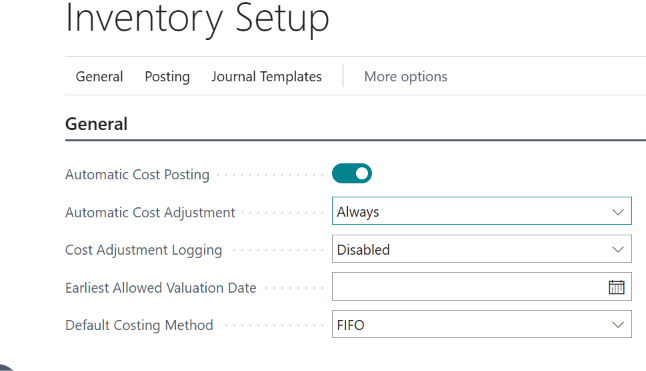
The order matters: adjust first, then post. Microsoft's own guidance is to run Adjust Cost - Item Entries before Post Inventory Cost to G/L. Otherwise you post costs that are about to change.
Most reconciliation problems are a break somewhere in that chain.
The six usual causes
1. Cost adjustment hasn't run, or is failing
If adjustment is set to run only periodically, or the scheduled batch job has been failing quietly, outbound entries still carry their original cost. The inventory valuation and the G/L can both be "right" about different numbers.
Since 2024 release wave 1, Business Central has better tools for this. On the Inventory Setup page, the Cost Adjustment Logging field (Disabled, Errors Only, All) records what each run did. The Inventory Cost Adjustment page lets you run adjustment in item batches. If a batch fails, Business Central splits it so you can see which item caused the error instead of the whole run stopping. (Microsoft's documentation.)
2. Costs were adjusted but not posted
This is the most common one when Automatic Cost Posting is off, or when the scheduled Post Inventory Cost to G/L job isn't running. Run Post Inventory Cost to G/L without the Post option first. It produces a test report showing what's waiting to post, which tells you the size of the gap before you change anything.
3. Expected cost settings don't match how you read the reports
When goods are received but not yet invoiced, their cost is expected cost. If Expected Cost Posting to G/L is on, Business Central posts that expected cost to interim accounts: Inventory Account (Interim) on the Inventory Posting Setup, balanced by Invt. Accrual Acc. (Interim) on the General Posting Setup. If it's off, expected cost shows up in inventory reports but not in the G/L at all.
Neither setting is wrong. But if your inventory report includes expected cost and your trial balance doesn't, they'll never agree. Microsoft notes that Expected Cost Posting to G/L only works with Automatic Cost Posting also on.
4. Someone posted directly to an inventory account
Inventory G/L accounts should only receive entries that come from item transactions. A general journal entry to the inventory account ("just fixing the balance") moves the G/L without touching any value entry, so the two can't reconcile again until it's reversed.
Look at the G/L entries on your inventory accounts and filter by source code. Anything that didn't come from an inventory posting is a candidate. To prevent it, turn off Direct Posting on the G/L account card for each inventory account, so they can't be used in a general journal at all.
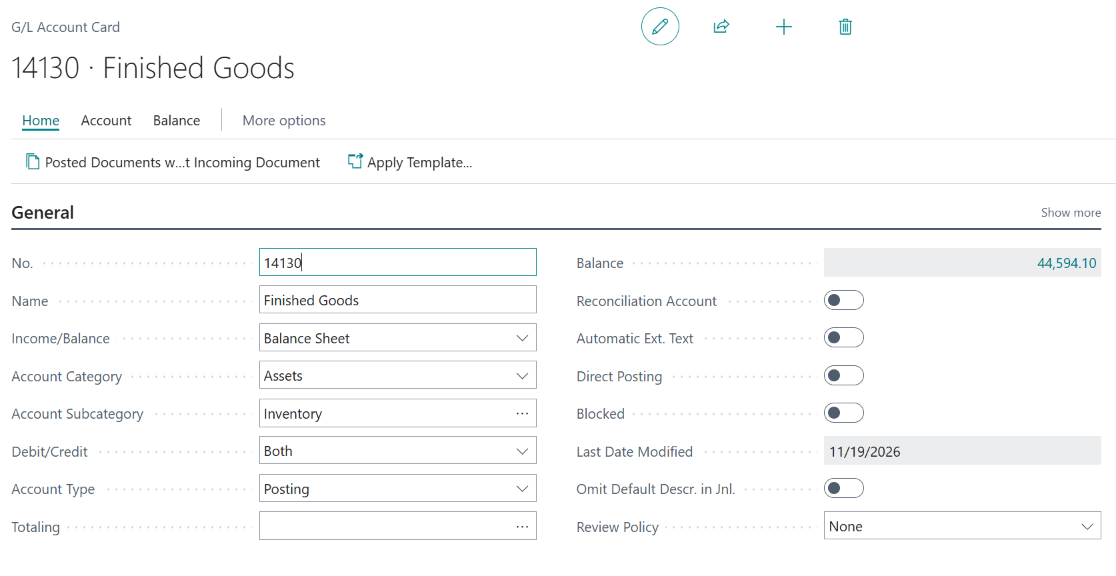
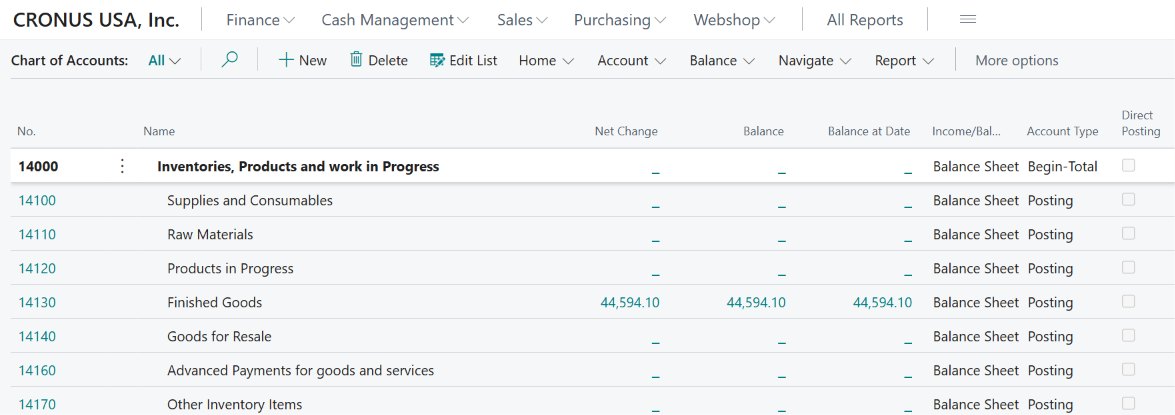
You don't need to open every card to check. The Chart of Accounts list has a Direct Posting column, so you can see all your inventory accounts at once.
5. Posting groups send cost to the wrong account
The account a value entry posts to comes from the Inventory Posting Setup (inventory posting group plus location) and the General Posting Setup (general business and product posting groups). If an item has the wrong inventory posting group, or a location has no specific setup line, cost can land in an account you aren't reconciling. Inventory and G/L then match in total but not account by account, or the "missing" amount turns up in a different balance sheet line.
6. Timing: dates and closed periods
Reconciling "as of" a date compares value entries by posting date with G/L entries by posting date. A purchase invoice dated in December but posted in January, or an adjustment that reaches back into a period, can make a past month disagree even when today ties out. If you use Inventory Periods and close them, Business Central blocks inventory posting before the period's ending date. That protects closed months, but it also means adjustment can't correct them, so close a period only after adjustment and G/L posting are done.
How to reconcile, step by step
- Run Adjust Cost - Item Entries for all items (or check the latest run and its log if adjustment is automatic).
- Run Post Inventory Cost to G/L as a test (without Post) and note the total. Then run it with Post.
- Open the Inventory - G/L Reconciliation page. It compares Inventory, Inventory (Interim) and WIP Inventory from value entries against the G/L, and shows the difference. Use Show Warning to see Business Central's explanation of the gap.
- Run the Inventory Valuation report for the period and compare its ending value with your inventory accounts. In the United States, Canada and Mexico, use the localized version of the report.
- Filter G/L entries on the inventory accounts for source codes that aren't inventory postings. Reverse and repost any direct journal entries correctly.
- Check posting setup for the items or locations where the difference sits.
If the difference is still there after steps 1 and 2, it's not a timing or batch-job problem, and steps 5 and 6 usually find it.
What we see most often
A distributor's inventory was about $90,000 higher in the valuation report than on the balance sheet. Automatic cost posting had been turned off during data migration to speed up loading opening balances and never turned back on, and the scheduled Post Inventory Cost to G/L job had been deactivated at the same time. Six months of adjusted costs had never reached the G/L. Running the batch job closed most of the gap. The rest was two general journal "corrections" to the inventory account made while the team tried to force the numbers to agree.
The pattern repeats: a setting changed during implementation, a job queue entry that stopped, then manual entries made to cover the symptom, each one making the next month harder.
When it's a sign of something bigger
A one-off difference after a missed batch job is housekeeping. Fix it and add a month-end checklist step. It's worth a closer look when:
- the difference comes back every month after you've run both batch jobs;
- cost adjustment takes hours or regularly fails;
- inventory and G/L have been out of balance since go-live;
- nobody is sure which settings were changed during implementation, or why.
Those usually point to setup decisions made during implementation, such as posting groups, costing methods or migrated opening balances, rather than day-to-day use. They're fixable, but they're easier to fix before year-end and the audit than after. If the problems go back to go-live, see how a project rescue works.