
How to set up a purchase approval workflow in Business Central
You want purchase orders above a certain amount to be approved before anyone can release them, and you want that approval recorded in the system rather than in an email thread. Business Central does this with approval workflows. The setup has three parts: who approves whom, the workflow itself, and how people are told a request is waiting.
For the CFO, in three lines
- Why it matters: Approval workflows enforce your delegation of authority on purchases, with a record in the system.
- What goes wrong: Approval by email leaves no audit trail, and notifications silently stop if the job queue fails.
- Ask your team: Do our approval limits in Business Central match our delegation of authority?
Approval User Setup comes first
A workflow can't route a request until Business Central knows each user's approver. Open the Approval User Setup page and add a line for every person who sends or approves requests.
| Field | What it does |
|---|---|
| User ID | The person the line is for. |
| Approver ID | Who approves this person's requests. |
| Purchase Amount Approval Limit | The largest purchase amount, in LCY, this person can approve. |
| Unlimited Purchase Approval | Lets the person approve any purchase amount. If selected, the limit field can't be filled in. |
| Request Amount Approval Limit | A limit for purchase quotes, used only with the Approver Chain limit type. |
| Salespers./Purch. Code | Links the user to a purchaser code, when the purchaser responsible for a vendor is also the approver. |
| Substitute | Who approves when the approver isn't available. |
| The user's email address for notifications. | |
| Approval Administrator | The one user who can unblock workflows, for example by delegating requests or deleting overdue ones. Only one person can hold this. |
There are matching sales fields (Sales Amount Approval Limit and Unlimited Sales Approval) if you also approve sales documents. When you're done, run the Approval User Setup Test action to check the setup.
Order matters: you have to set up an approver before you can set up the users who need that approver's approval. Start at the top of the chain and work down.
A worked example of an approval chain
Take three users:
| User ID | Approver ID | Purchase Amount Approval Limit | Unlimited Purchase Approval |
|---|---|---|---|
| CONTROLLER | Selected | ||
| MANAGER | CONTROLLER | 5,000 | |
| BUYER | MANAGER | 0 |
BUYER sends a $12,000 purchase order for approval. What happens depends on the Approver Limit Type on the workflow's approval response:
- Approver Chain creates approval entries for each approver in the chain up to and including the first one whose limit covers the amount. MANAGER's $5,000 limit isn't enough, so entries are created for MANAGER and CONTROLLER.
- Direct Approver creates one entry, for MANAGER only, whatever MANAGER's limit is.
- Specific Approver sends the request to the user named in the response's Approver ID field.
- First Qualified Approver, per Microsoft, creates an approval entry only for the requester's first approver.
A $3,000 order with Approver Chain stops at MANAGER, because $3,000 is within MANAGER's limit.
Build the workflow from a Microsoft template
Business Central ships workflow templates for common approvals. Their codes start with MS-. You create your own workflow from one and adjust it.
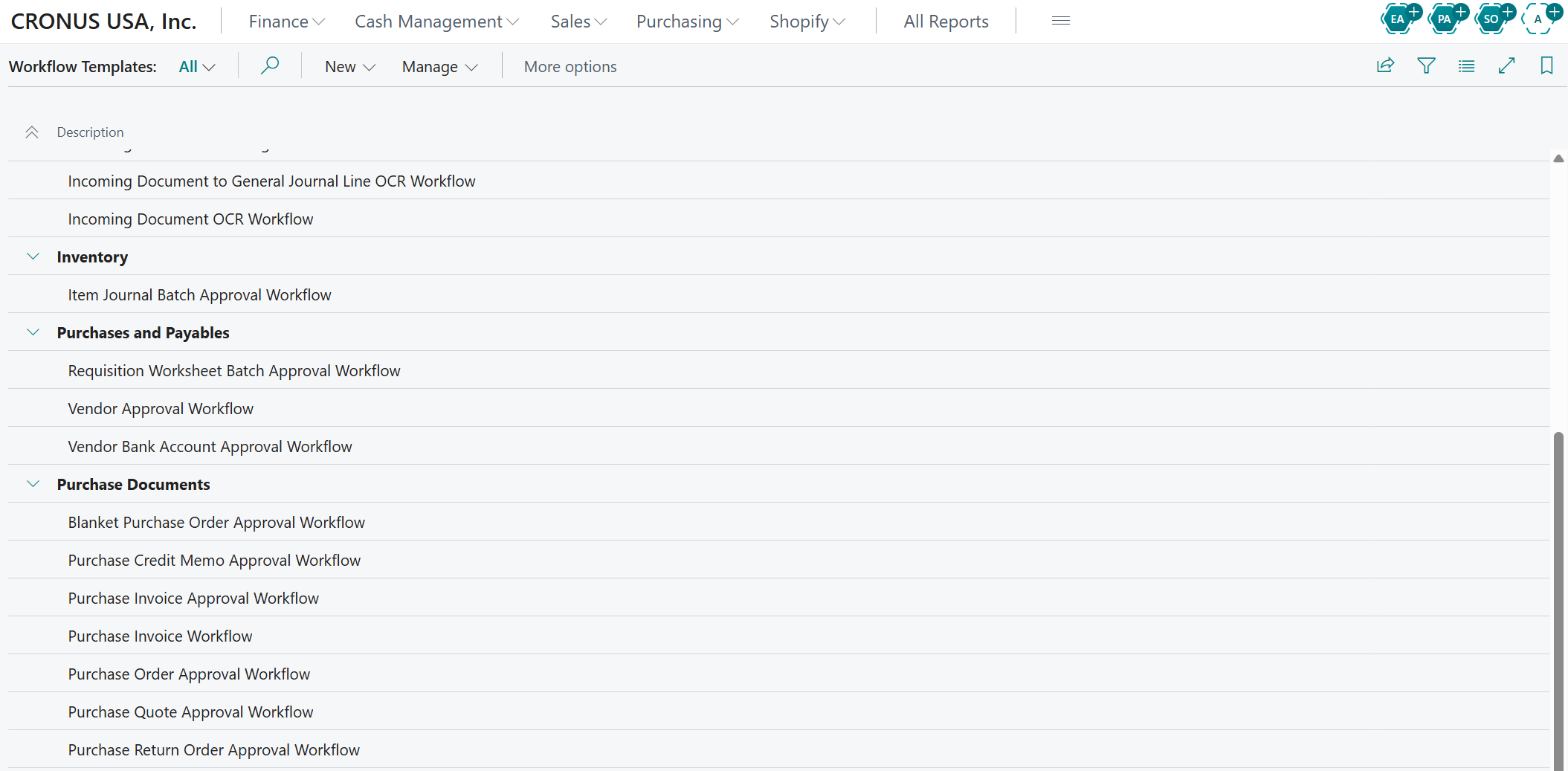
- Search for Workflows and choose New Workflow from Template.
- On the Workflow Templates page, select Purchase Order Approval Workflow and choose OK. The new workflow's code gets a suffix such as -01.
- Review the steps. Each line has a When Event, an On Condition (filters that decide when the step applies) and a Then Response.
- Open the response that creates the approval request and set its options: Approver Type, Approver Limit Type, Due Date Formula and Delegate After.
- Turn on the Enabled toggle.
The Approver Type field decides where approvers come from. Salesperson/Purchaser uses the purchaser code on Approval User Setup. Workflow User Group uses a group of approvers you define on the Workflow User Group page, which is how you require more than one person to approve.
Due Date Formula sets how many days the approver has, counted from when the request is sent. Delegate After can hand an unanswered request to the substitute automatically after one, two or five days.
Notifications run through the job queue
On Approval User Setup, select a user and choose Notification Setup. Set Notification Type to Approval and choose a Notification Method, such as Email or Note. The Notification Schedule action sets when they're sent, for example a Recurrence of Instantly.
Microsoft notes that all workflow notifications are sent through a job queue. If approvers say they never got a request, check the job queue before the workflow. Open the Job Queue Entries page and look for entries with the status Error.
What happens when someone sends a purchase order for approval
- On the purchase order, the requester chooses Request Approval, then Send Approval Request.
- The order's Status changes from Open to Pending Approval, and the order is locked until it's approved.
- The approver opens Requests to Approve (or follows the link in the notification) and chooses Approve, Reject or Delegate. Several requests can be handled at once.
- When every required approver has approved, the order's status changes to Released.
If the order needs changing while it's pending, the requester chooses Cancel Approval Request. The approval entry becomes Canceled, the order goes back to Open, and the process can start again.
The Approval Request Entries page lists your approval requests and their status. Overdue requests show on the Overdue Approval Requests page, where Send Overdue Approval Notifications reminds each approver, their approver and the requesters.
Delegation and substitutes
The approver or the approval administrator can delegate a request with the Delegate action. Business Central sends it to the designated substitute first, then the direct approver, then the approval administrator, in that order of priority.
Common mistakes
- The requester is also an approver. Microsoft warns that when one user is both a requester and an approver in a workflow user group, their own requests are approved automatically. Keep the roles separate.
- Enabling too early. Microsoft's advice is not to enable a workflow until it's ready. Test it in a sandbox with real users and amounts first.
- Changing the first event of a template copy. When you change a step's When Event, its responses are cleared, and later steps that pointed to them stop working. Recheck every next step afterward.
- Setting up users bottom-up. An approver has to exist on Approval User Setup before you can enter them as someone else's Approver ID.
Microsoft's references are Set up approval users, Create approval workflows and the purchase approval walkthrough.
Set up approvers top-down, pick the limit type on purpose, and test before you enable.
Purchase approval checklist
- Add every requester and approver on Approval User Setup, starting with the top approver.
- Give the top approver unlimited purchase approval or a high enough limit.
- Name a substitute for each approver and one approval administrator.
- Create the workflow from the template and set Approver Limit Type and Due Date Formula.
- Set up notifications and confirm the job queue is running.
- Test in a sandbox before turning on Enabled in production.