
How to set up U.S. sales tax in Business Central
The U.S. version of Business Central calculates sales tax from a handful of setup tables: tax jurisdictions, tax areas, tax groups and tax details. When a sales invoice shows the wrong tax, or no tax at all, the answer is in how those tables fit together. This article explains each one, how they combine on a document, and what to check.
For the CFO, in three lines
- Why it matters: Sales tax setup decides the tax on every invoice, and errors become a liability for you, not the customer.
- What goes wrong: Wrong tax area or tax group on customers and items means wrong tax on every line.
- Ask your team: When was our tax setup last checked against current rates?
Four building blocks, one calculation
U.S. sales tax in Business Central is built from four pieces of setup. Each answers a different question.
| Setup | Question it answers | Assigned to |
|---|---|---|
| Tax jurisdiction | Which authority charges the tax (a state, county, city or locality)? | Tax areas and tax details |
| Tax area | Which jurisdictions apply at this location? | Customers, locations and your company |
| Tax group | What kind of item or service is this, for tax purposes? | Items and G/L accounts |
| Tax detail | What rate does this jurisdiction charge on this tax group, from what date? | Combinations of jurisdiction and tax group |
A tax area is a group of jurisdictions for one geographic location. Microsoft's example is Miami, Florida, which combines a city jurisdiction (Miami), a county jurisdiction (Dade) and a state jurisdiction (Florida). Business Central ships with a small set of default tax areas, which you can change or add to.
Start with Tax Setup and the assisted setup guide
Microsoft recommends starting with the Set up sales tax assisted setup guide, which includes choosing the G/L accounts for sales tax on sales and purchases. The guide can apply the new tax area to your company information, and optionally to customers or vendors, using a filter to choose which ones. Who gets which tax area code decides what tax is calculated on their transactions.
Alongside the guide, open the Tax Setup page:
- Non-Taxable Tax Group Code identifies the tax group used for nontaxable transactions.
- On the Default Accounts FastTab, Tax Account (Sales), Tax Account (Purchases) and Reverse Charge (Purchases) provide default G/L accounts for posting calculated tax.
Each tax jurisdiction also has its own tax account settings, so different authorities can post to different liability accounts.
Set up tax groups and tax details
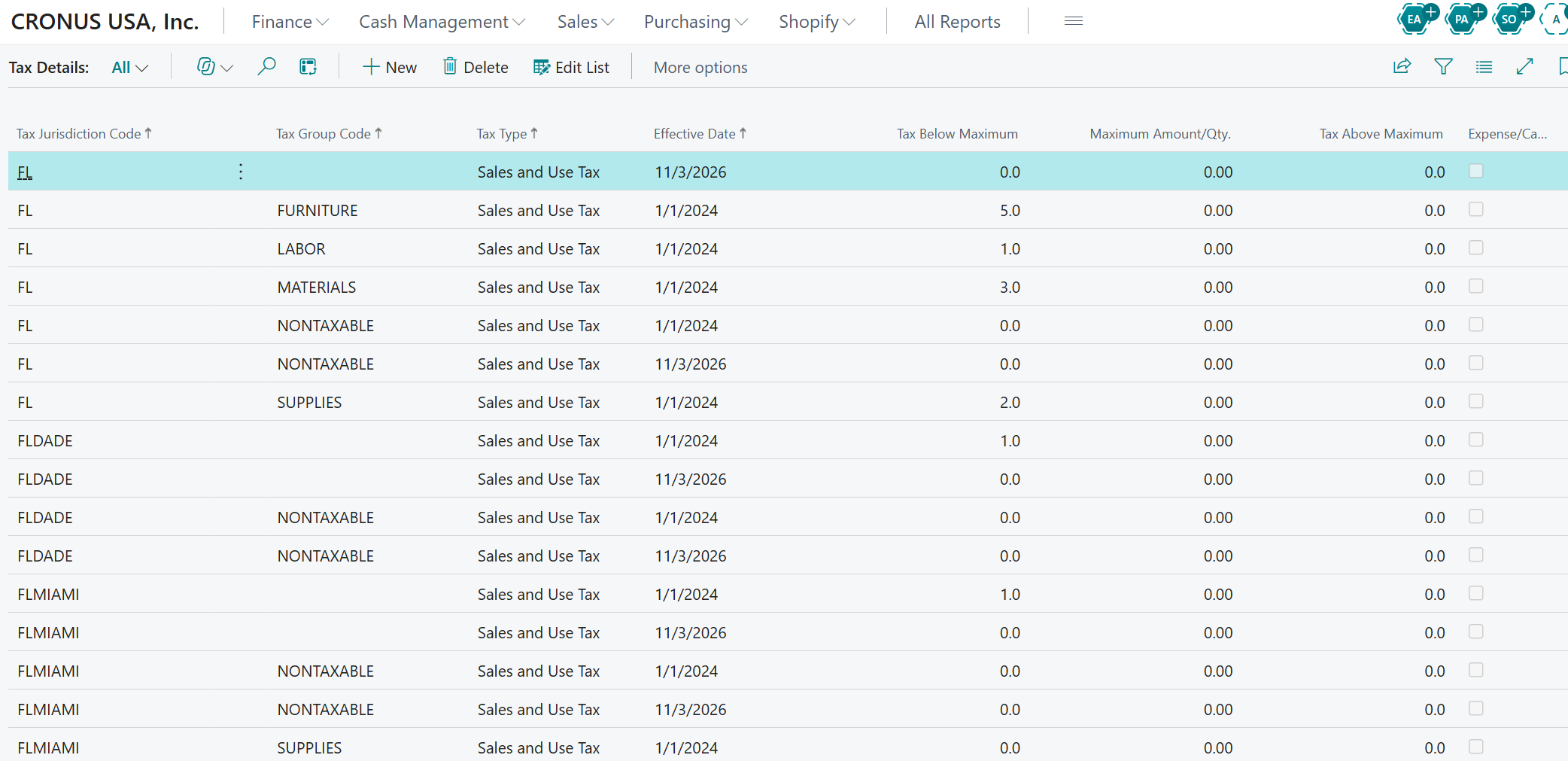
A tax group covers items or resources that are taxed the same way. Microsoft's guidance is to set up, for each jurisdiction:
- one tax group for normal sales tax,
- one tax group for items or services that aren't taxed, and
- one more tax group for every type of item or service taxed at a different rate in that jurisdiction.
The Tax Details page holds the rates. Each line is a combination of Tax Jurisdiction Code, Tax Group Code, Tax Type and Effective Date. Enter the rate in Tax Below Maximum, and use Tax Above Maximum when a different rate applies above a maximum amount. For the nontaxable tax group, set the rates to zero.
The Tax Type options are Sales and Use Tax, Excise Tax, Sales Tax Only and Use Tax Only. Each detail line has its own effective date, so a rate change can be entered as a new line dated when the new rate starts.
How tax is calculated on a sales document
Business Central uses three values together to find the tax: the Tax Area Code, the Tax Group Code and the Tax Liable field. Tax Liable on the customer specifies whether the customer is liable for sales tax. The tax area points to a set of jurisdictions. The tax group on the item or G/L account line picks the tax detail rate for each of those jurisdictions.
Here's a worked example with illustrative rates. A customer is tax liable and has a tax area made up of three jurisdictions. The invoice has one line: $1,000 of an item in the taxable group.
| Jurisdiction | Tax detail rate (taxable group) | Tax on $1,000 |
|---|---|---|
| State | 5.0% | $50.00 |
| County | 1.0% | $10.00 |
| City | 0.5% | $5.00 |
| Total | 6.5% | $65.00 |
If the same customer also buys $200 of an item in the nontaxable group, those tax details are zero and the line adds no tax. Sales tax can also be charged on tax: a jurisdiction can calculate its tax on an amount that already includes tax from other jurisdictions. In that case the total differs from the simple sum above, so check how each of your jurisdictions is set up.
Where use tax fits for purchases
Use tax is sales tax a company owes on items it buys and uses itself instead of reselling. Business Central handles it through the same tables. Tax details with a Tax Type of Use Tax Only or Sales and Use Tax cover it. The purchase header has Tax Liable and Tax Area Code fields (the vendor's tax area), but they aren't shown by default, so you may need to personalize the page to see them. If tax paid isn't recoverable, select Expense/Capitalize on the tax detail.
Things to check
- Every item and G/L account used on sales lines has a tax group. Microsoft says tax group codes must be assigned to items and G/L accounts.
- Every customer, location and your company has a tax area. Tax area codes must be assigned to all three.
- Tax Liable is set correctly on each customer. It's one of the three inputs to the calculation.
- Each jurisdiction has a detail line for every tax group, including a zero-rate line for the nontaxable group.
- Effective dates are right. A rate entered with the wrong effective date applies from the wrong day.
- Jurisdiction accounts are filled in. Each jurisdiction carries its own tax accounts, in addition to the defaults on Tax Setup.
- Several companies use the same setup. If you have more than one company in the database, the Copy Tax Setup task copies tax settings between them so they stay identical.
Microsoft recommends working closely with a tax advisor on where you must collect tax and which rates and dates apply, and warns against assuming a sale is exempt only because you have no physical location in the customer's state. For the setup itself, see Microsoft's pages on sales tax in the U.S. version, basic tax setup and use tax and purchase tax.
Tax area, tax group and Tax Liable decide the tax on every line. Get those three right on your master data and the tax details do the rest.
Sales tax setup checklist
- Run the Set up sales tax guide and fill in the Tax Setup page.
- Create jurisdictions for each authority you collect for, with their tax accounts.
- Build tax areas from those jurisdictions for each location you sell into.
- Create tax groups for taxable, nontaxable and differently taxed items.
- Enter tax details with Tax Type, Effective Date and rates for every jurisdiction and group.
- Assign tax areas and Tax Liable to customers, locations and your company, and tax groups to items and G/L accounts.