
How to do a bank reconciliation in Business Central
The bank statement is in, and the bank balance in Business Central needs to agree with it. Business Central gives you two pages for this work, an import and matching process, and a test report that shows exactly what's still outstanding. This article explains which page to use, how matching works, and what to look at when the reconciliation won't balance.
For the CFO, in three lines
- Why it matters: The bank reconciliation proves the cash on your balance sheet is real.
- What goes wrong: Unexplained differences get posted away instead of resolved, and the cash balance stops meaning anything.
- Ask your team: Are all reconciliations posted for last month, with every difference explained?
Two pages, two jobs
Business Central can reconcile a bank account in two places. They overlap, but they're built for different work.
| Page | What it's for | What posting does |
|---|---|---|
| Bank Acc. Reconciliation | Matching bank statement lines to bank account ledger entries that already exist in Business Central. | Marks the matched entries as reconciled. It doesn't create customer or vendor payments. |
| Payment Reconciliation Journal | Registering payments from the bank statement and applying them to open customer and vendor entries. | Posts the payments, closes the applied entries and creates bank account ledger entries. With Post Payments and Reconcile Bank Account, it also reconciles those bank entries. |
In short: if cash receipts and vendor payments are already posted, use the Bank Acc. Reconciliation page. If you want the bank file to drive the posting of payments, use the Payment Reconciliation Journal. If you post payments from the journal with Post Payments Only, the bank entries stay open and you reconcile them separately on the Bank Acc. Reconciliation page.
North American versions also include a Bank Rec. Worksheet page, which handles checks and deposits but can't import bank statement files. To use it instead of the Bank Acc. Reconciliation page, clear Bank Recon. with Auto. Match on General Ledger Setup. The rest of this article covers the Bank Acc. Reconciliation page.
Step 1: Create the reconciliation and bring in the statement
- Search for Bank Account Reconciliation and choose New.
- In Bank Account No., select the account. Its ledger entries appear in the Bank Account Ledger Entries pane on the right.
- Enter the Statement Date and the Statement Ending Balance from the bank statement.
- Choose Import Bank Statement and select the file. The transactions fill the Bank Statement Lines pane on the left.
To import files, the bank account needs a statement import format. The Set up a bank statement file format assisted setup defines a format for comma or semicolon delimited (.CSV) files and attaches it to the bank account. Bank feeds are a separate option that needs a bank feed service set up first.
If you don't have a file, the Suggest Lines action fills the left pane from ledger entries with outstanding payments instead. Enter a Starting Date and an Ending Date for the ledger entries to include. The ending date is usually the statement date.
The Balance Last Statement field comes from the most recent reconciliation of the same account, and it's zero on the first one. Once a Statement Date is entered, the page only shows bank ledger entries up to that date, and only those entries can be posted with this reconciliation.
Step 2: Match automatically, then manually
Choose Match Automatically. On the Match Bank Entries page, the Transaction Date Tolerance (Days) field sets how many days before and after a ledger entry's posting date Business Central looks for a statement line with a matching date. With 0 or blank, it only matches on the exact posting date. Matches are based on text on the statement line and the ledger entries, and the Match Details action shows which fields matched.
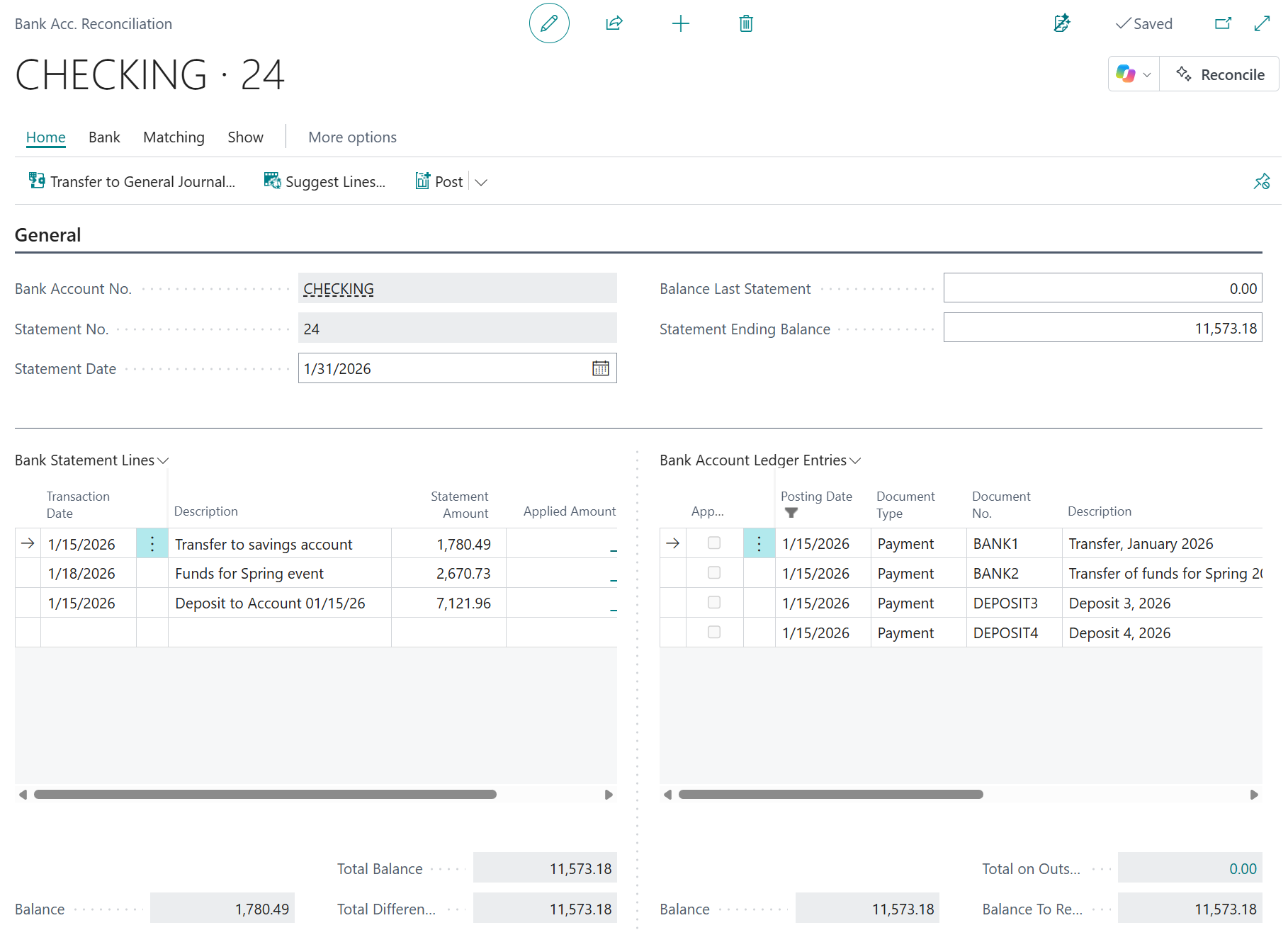
Matched lines on the current reconciliation turn bold green. Entries matched on a different reconciliation show in italic blue. To undo a match, select the statement line and choose Remove Match.
For what's left, match by hand. Select a statement line on the left, select one or more ledger entries on the right (hold Ctrl for several), and choose Match Manually. You can also match several statement lines to one ledger entry, for example when the bank splits a single deposit into separate card settlements. Manual and automatic matching can be mixed, and running Match Automatically again won't overwrite your manual matches.
Step 3: Create entries for fees and interest
Bank fees and interest often appear on the statement with nothing to match in Business Central. Choose Transfer to General Journal, pick a journal on the Trans. Bank Rec. to Gen. Jnl. page, and Business Central creates journal lines for the unmatched statement lines. Fill in the balancing account (for example, your bank charges account), post the journal, and then refresh the reconciliation. The new ledger entry appears on the right and can be matched.
Step 4: Run the Test Report, then post
Choose Test Report to preview the reconciliation. The report shows the outstanding items that explain the gap between the bank's balance and yours. Here's a worked example.
| Test Report line | Amount |
|---|---|
| Statement Ending Balance | $54,475.00 |
| Outstanding Bank Transactions (a deposit posted on the 31st, not yet at the bank) | $3,000.00 |
| Outstanding Checks (a check not yet cashed) | -$1,200.00 |
| Bank Account Balance | $56,275.00 |
The Bank Account Balance on the report is the sum of the statement ending balance, outstanding bank transactions and outstanding checks. Once every difference on matched entries is handled, this figure should agree with the bank account's balance in Business Central. The outstanding entries stay open and can be matched on the next reconciliation.
You can choose Post when the Total Balance in the Bank Statement Lines pane equals Balance To Reconcile plus Balance Last Statement in the Bank Account Ledger Entries pane. After posting, the reconciliation is listed on the Bank Account Statement List page. If you find a mistake later, the Undo action there moves the entries back to an open reconciliation so you can correct and repost it. In North American versions, Undo requires Bank Recon. with Auto. Match to be turned on.
Why won't my bank reconciliation balance?
Microsoft's documentation points to a short list of causes.
- A transaction is on the statement but not in Business Central. Fees, interest or a payment nobody recorded. Create and post the missing entry, then match it.
- A transaction is in Business Central but not on the statement. It was posted but never happened at the bank. Find out why, then reimport or enter the bank transaction.
- The details don't agree. The amount or name was entered differently on each side, so automatic matching skips it. Review and match manually, and correct the error if there is one.
- A many-to-one match has a difference. If you match one statement line of $500 to two ledger entries that total $480, the $20 difference blocks posting. This holds even when another line's difference offsets it to zero. Post the differences, then match against the new entries.
- Someone posted directly to the bank's G/L account. Entries posted straight to the G/L account aren't bank account ledger entries, so they never show up on the reconciliation. The Test Report warns about direct postings. Microsoft notes this often happens with opening balances, and recommends that the G/L account in the bank account posting group not allow direct posting.
- Several banks share one G/L account. The Test Report compares the G/L account balance with the bank account balance, and Microsoft advises against sharing a G/L account between banks.
- The statement date was changed after matching. Entering a later statement ending date after matching can make the Test Report data wrong. If you enter an earlier date, matches after that date are undone.
For the full procedures, see Microsoft's pages on reconciling bank accounts and reconciling payments using automatic application.
Outstanding items are normal. Differences are not: resolve every one before you post.
Bank reconciliation checklist
- Pick the right page: Bank Acc. Reconciliation for posted entries, Payment Reconciliation Journal to post payments from the bank file.
- Enter the Statement Date and Statement Ending Balance before you match.
- Import the statement and run Match Automatically with a sensible date tolerance.
- Match the rest manually and use Transfer to General Journal for fees and interest.
- Run the Test Report and confirm outstanding checks and transactions explain the gap.
- Block direct posting on the G/L account in each bank account posting group.